2018年5月28日 星期一

2018年5月13日 星期日

GO: Development a simple windows GUI use lxn-walk package(2) -- Combobox and Button

1.Create the project folder and win_gui_v1.go in your go work space
   > cd ..\src\
   > mkdir win_gui_v1
2.Copy the .manifest file and modify to your_execution.exe.manifest


3.Code
3.Result


Ref:
      1. Go实战--使用golang开发Windows Gui桌面程序(lxn/walk)
      2. ComboBox 類別
      3. lxn/walk/examples

2018年5月6日 星期日

GO: Development a simple windows GUI use lxn-walk package(1) -- Getting start


"Walk is a "Windows Application Library Kit" for the Go Programming Language.
Its primarily useful for Desktop GUI development".  In this series I try to build a simple terminal program to commnunicate via COM port.

1. Getting start
    >   go get github.com/lxn/walk

2. Build the example
     >   cd ..\src\github.com\lxn\walk\examples\imageviewer
     >   go build

3. run the imageviewer.exe


Ref:
    1.  l/walk

GO : List all the serial port in windows use golang-sys package

We can easily get all the serial port in windows using regedit.exe


In our application we read the windows register key `HARDWARE\\DEVICEMAP\\SERIALCOMM` through windows API and list all the sub key and value.


Github project: win_serial_console

2018年4月2日 星期一

CC2640:Change RF front end mode and bias

1. In ../main.c define your own BLE configuration template.
2.The option and default configuration is define in ../ble_user_config.h
 

The internal bias and external bias is determine by the RX_TX pin, which didn't implement in 7x7 package.In our application we use the CC2592 as PA and use 5x5 package for smaller footprint, and the configuration is differential mode internal bias.


Ref:
      1.CC26xx HW Training : RF Front End options and Antennas
      2.CC2640 在 Beacon 应用中的实现方法
      3.CC26x0 SimpleLink™Bluetooth®low energy Software Stack 2.2.xDeveloper's Guide

2018年1月17日 星期三

CC2640:Use System_printf in project.

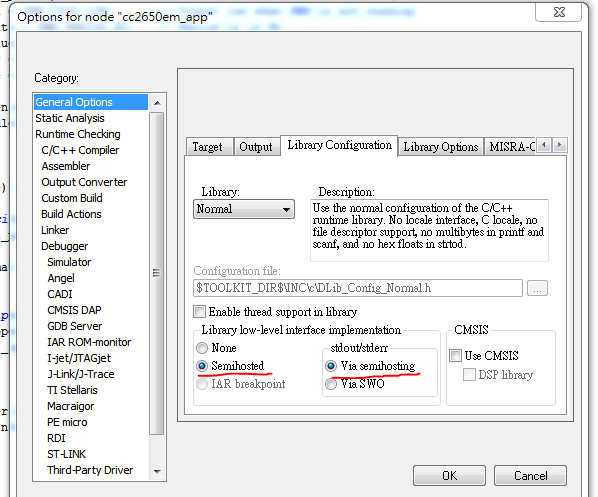
1.I use IAR as IDE to develop CC2640 BLE project and XDS100V3 as debugger.First make sure           enable the Semihosted and Via semihosting in General Options.
 
2.Add below code in app_ble.cfg file.
 

3.Add include header file and test.


4.In debug mode enable View->Terminal I/O and we can see the Hello World! in terminal.


Ref:
     1.System_printf and printf() on CC2650 sensorTag
     2.System_printf supported format specifications

2017年12月24日 星期日

CC2640: Add Watchdog driver to project.

1.Add ble_sdk_2_02_01_18\src\components\services\src\watchdog
   Watchdog.h, WatchdogCC26XX.c, WatchdogCC26XX.h to your project, and add
   $SRC_COMMON$/services/src/watchdog to your project include path.
2.In CC2650DK_5XD.h(Select what platform you use) add below code.

3.In CC2650DK_5XD.c(Select what platform you use) add below code.

4.Add below code to your application.


Ref:
      1.RTOS/CC2640: How to set CC2640 watchdog with TIRTOS 2.13
      2.WatchdogCC26XX.h File Reference
      3.CC2640 看门狗
      4.http://blog.csdn.net/zzfenglin/article/details/52253536

Linux driver: How to enable dynamic debug at booting time for built-in driver.

 Dynamic debug is useful for debug driver, and can be enable by: 1. Mount debug fs #>mount -t debugfs none /sys/kernel/debug 2. Enable dy...